User Guide
Cycling Planner · Comprehensive documentation
🚀 Getting started
Registration and login
Getting started with Cycling Planner begins on the home page. Click «Start for free» and enter your email address, a username and a secure password. Shortly afterwards you will receive a confirmation email – click the link inside to activate your account. You can only log in after this confirmation. If the email doesn't arrive, use the «Resend confirmation email» link on the login page.
If you have forgotten your password, click «Forgot password» on the login page. You will receive a reset link by email, valid for 30 minutes.
The user interface
After logging in you land on the Dashboard, which gives you an overview of your tours, uploaded GPX files and personal statistics. The top navigation takes you to the main areas of Cycling Planner:
| Area | Function |
|---|---|
| Dashboard | Home with statistics and quick access to current tours |
| 🗺 Tours | List of all tours – create new tours and open the planner here |
| 📂 GPX Files | Manage, analyse and use uploaded tracks as tour basis |
| 🏆 Athletics | Personal performance analysis and best times – Pro users only |
| ⭐ Plan | Subscription management – upgrade to Pro or cancel |
| ❓ Help | This guide |
| ✉️ Support | Send an email directly to support |
Automatic session extension
Your session stays active as long as you use Cycling Planner. After 24 hours of inactivity you are automatically logged out – five minutes beforehand a warning appears at the top of the page, giving you the chance to extend the session with a click. Every interaction with Cycling Planner – a click, text input or route calculation – automatically extends the session by a further 24 hours.
Switch language
The language switcher is in the top-right navigation: 🇩🇪 DE / 🇬🇧 EN. The chosen language is saved for one year in a browser cookie and applies to all pages including system emails.
📂 Upload and manage GPX files
What is a GPX file?
GPX (GPS Exchange Format) is the universal standard for exchanging GPS data. A GPX file contains an ordered sequence of coordinate points (longitude, latitude) plus optional elevation information and timestamps. Almost all GPS devices and sports apps can export GPX files: Garmin computers, Wahoo bike computers, Strava, Komoot, RideWithGPS, Outdooractive and many more.
Uploading GPX files
Navigate to «GPX Files» in the menu and click «+ Upload GPX». You can drag and drop the file into the marked area or select it via the file browser. Optionally add a description so you can find the track later – for example «Komoot export EuroVelo 6 section Basel–Koblenz». Then click «Upload track».
The app automatically analyses the track and calculates distance, elevation gain, difficulty and other metrics. This process usually takes a few seconds.
Track analysis in detail
After upload you see a complete evaluation of your track. The most important metrics at a glance:
🗺 Create a tour
A tour is the central object in Cycling Planner. It brings together all stages, routes, accommodations and notes of a cycling trip. Navigate to «Tours» and click «+ New Tour». The form contains the following fields:
| Field | Description | Example |
|---|---|---|
| Tour name | A descriptive name that you'll see later in the list and on the map | «Alps Crossing 2025» |
| Description | Optional free text for personal notes, motivations or planning hints | «With touring bike from Munich to Venice» |
| Start date | The first riding day. Automatically sets the date of the first stage | 01.07.2025 |
| End date | The last riding day. Together with the start date, Cycling Planner calculates the optimal daily distance | 14.07.2025 |
| Daily km | Fallback value when no date range is given. Sets how long each stage should be (default: 80 km) | 65 km |
| Routing profile | The BRouter profile used for all route calculations of this tour. Can be changed at any time | Trekking (cycle routes preferred) |
After saving the tour list opens. Click the pencil icon or the tour name to open the tour planner.
Tour list with status groups
The tour list is divided into three groups according to the status of each tour:
| Group | Meaning |
|---|---|
| 🚴 Active | Tours currently taking place or starting soon |
| 📋 Planning | Tours in preparation |
| ✅ Completed | Finished tours |
Each group can be collapsed and expanded by clicking the group header. The state is remembered for your next visit. You can change a tour's status in the tour dialog (fields icon in the top right of the planner).
Editing title and description
Expand a tour in the list — the title is directly editable as a text field. Changes are saved automatically on blur or Enter. The description opens a rich-text editor on click (bold, italic, lists, headings).
Making a tour public
The 🌍 / 🔒 toggle is right there in the expanded tour row. One click makes the tour public or private — no settings page needed. A 🔗 Public link button appears when the tour is public.
✏️ Planner – Overview
The tour planner is the heart of Cycling Planner. It consists of two areas: the interactive map on the right and the sidebar on the left with several tabs. The map shows your route, stage markers and optional overlays such as accommodations or reference tracks. The sidebar gives you access to all planning functions.
Elements on the map
On the map you see various markers and lines that you can interact with directly:
| Element | Meaning and interaction |
|---|---|
| «S» marker (green) | Tour start point. On circular routes a click opens the popup for moving the start point |
| Numbered markers (1, 2…) | Stage endpoints. Drag moves the endpoint and recalculates the route. Click opens the stage dialog |
| 🏁 Finish marker | Last stage endpoint. Also clickable on circular routes for start point relocation |
| Coloured route lines | Each stage has its own colour. A short click opens the stage dialog. Long drag on the line adds a via-point and reroutes. Distance markers every 25 km show the kilometre count |
| Needle marker (♦) | Via-points. Hover enlarges the needle. Click removes the point. Drag moves it |
| 🏕 Accommodation markers | Search results from OpenStreetMap. Hover after 600ms opens the details popup with «Set as stage destination» option |
| White circle | Appears when you move the mouse over a route line. Indicates that you can drag here to adjust the route |
Switching the background map
Using the layer icon at the top right of the map you can switch between three background maps:
| Map | Description |
|---|---|
| CyclOSM 🚴 | Cycling-optimised OpenStreetMap with highlighted cycle routes, contour lines and gradient info. Recommended for route planning. |
| OpenStreetMap | Standard OSM map with detailed road network, place names and points of interest. |
| 🛰 Satellite | Satellite imagery from Esri/Maxar. Useful for assessing real terrain, forest tracks or mountain passes. Can be combined with the cycling overlay. |
Sidebar tabs
| Tab | Content and function |
|---|---|
| 📍 Stages | Full list of all stages with name, date, distance, elevation and saved accommodation |
| 🔀 Routing | Set waypoints, choose BRouter profile, calculate route, tolerance slider for track following |
| 🏕 Accommodation | Accommodation search along the entire route (Pro) |
| 📈 Profile | Combined elevation profile of all stages with bidirectional map synchronisation |
| 🎒 Packing list | Customisable packing list with categories, weight tracking and print function |
| 🌤 Weather | Weather forecast per stage for the next 16 days (Pro) |
| 📌 Reference | Load a second GPX track as a thin background line on the map |
| ⚙ Tour | Tour settings, GPX import, GPX export, share tour, print view |
| 🚉 Train | Train connections and timetables to your home station (Pro) |
| 🛰️ Tracking | Live GPS tracking directly in the planner (Pro) |
The hourglass cursor
Whenever the server performs a computationally intensive operation – such as a route calculation via BRouter, moving a stage endpoint or an accommodation search – the entire cursor on the page changes to an hourglass. This is a deliberate signal: please wait until the operation is complete. Clicks or further actions during the hourglass phase can lead to inconsistent results. Once the map has updated the hourglass disappears automatically.
🔀 Routing
The routing system is based on BRouter, one of the most powerful open-source cycling routing services in the world. BRouter knows the entire cycling network from OpenStreetMap and finds the optimal route for each routing profile.
Routing profiles in detail
The chosen profile significantly influences which paths BRouter prefers and which it avoids. Choose the profile that best suits your bike and riding style:
| Profile | Suitable for | Characteristic |
|---|---|---|
| Trekking (cycle routes preferred) | Touring bike, loaded travel bike | Preferably follows signposted cycle routes and paths. stick_to_cycleroutes=true is active |
| Trekking (no route preference) | Touring bike on custom route | Chooses the best cycling route without being bound to signposted paths |
| Road (cycle routes preferred) | Sporty road bike, fast routes | Prefers signposted routes on tarmac, avoids gravel and dirt roads |
| Road (no route preference) | Road bike on custom course | Smooth tarmac has highest priority, without binding to cycle route signs |
| Gravel | Gravel bike, gravel, farm and forest tracks | Accepts gravel and unpaved paths but avoids difficult terrain |
| MTB | Mountain bike, trails, singletrack | Prefers trails and technical paths, also accepts steep sections |
| Safe & quiet | Urban cycling, families, commuters | Absolute priority on safe, quiet paths – even at the cost of directness |
| Shortest route | When distance is decisive | Minimises distance regardless of path type or safety |
Calculating a route
In tab «🔀 Routing» you click on the map to set waypoints. At least two points are needed: a start and an end. You can add as many intermediate points as you like. The waypoints appear as pins on the map and as a numbered list in the sidebar. Sort them by drag & drop or remove with the ✕ button. Once at least two points are set, the «Calculate route» button becomes active. After clicking, the hourglass appears – BRouter now calculates the optimal cycling route and automatically divides it into daily stages.
You can also use the location search top-left on the map to quickly navigate to a specific place and set a waypoint there.
Track following: GPX-based routing
If you have imported a GPX track as the basis for your tour, BRouter can follow this line as closely as possible. This is especially useful for well-known cycling routes like EuroVelo, TransAlp or regional long-distance cycle paths. The tolerance slider determines how closely BRouter follows the track, measured in kilometres:
- 1–2 km: BRouter barely leaves the track – ideal when the GPX exactly matches the desired route
- 3–5 km: Good balance between track fidelity and route quality (recommended for most use cases)
- 8+ km: BRouter may deviate significantly and choose its own cycling paths – useful when the track is outdated
📍 Edit stages
Each stage represents a riding day of your tour. After BRouter has calculated the route and divided it into daily stages, you can freely move stage endpoints, rename them and enrich them with information.
Moving a stage endpoint on the map
Click a numbered marker on the map, hold the mouse button and drag it to the desired new position. Once you release, the hourglass appears: BRouter recalculates not only this stage but all subsequent stages automatically. This keeps the entire route consistent. After the calculation is complete, the map, stage list, elevation profile and statistics all update simultaneously.
Opening the stage dialog
You can reach the stage dialog in two ways: either by clicking a numbered marker or by a short click on a stage line. The dialog opens as a panel on the right edge of the map. On mobile devices it opens as an overlay.
Functions in the stage dialog
| Function | Description |
|---|---|
| Name | Free text name for the stage. Leave empty to use the auto-generated name «Stage N: Start – End», created via reverse geocoding (Nominatim) |
| Date | Riding day of this stage. If the date is changed, Cycling Planner shifts all subsequent stages by the same number of days – all in a single server request |
| Notes | Free text for route tips, elevation warnings, shopping opportunities or personal notes |
| ↻ Reroute | Recalculate only this one stage via BRouter without changing subsequent stages |
| ✂ Split stage | Activates split mode: the cursor becomes a crosshair, and a click on the map or stage line inserts a new intermediate stop at that point |
| 🗑 Clear via-points | Removes all via-points of this stage at once and immediately recalculates the route |
| 🏕 Accommodation search | Searches accommodations within a selectable radius around the stage endpoint (Pro) |
| 🗑️ Delete stage | Deletes the stage completely. The subsequent stage is seamlessly connected to the previous one |
Accommodation in the stage dialog
If an accommodation has been saved for a stage, it appears highlighted in green above the search: 🏕 Sunshine Campsite (Camping). Click ✕ to remove the accommodation. The accommodation is retained even if you subsequently move the stage endpoint – it is stored independently of the exact position. In the stage list in the sidebar the accommodation name also appears below the respective stage and in the hover tooltip of the stage marker on the map.
♦ Via-points
Via-points are waypoints that force BRouter to pass through a specific location during route calculation. They are essential when BRouter deviates from the desired route: for example at a mountain pass, a historic town centre, a train station or a point of interest you don't want to miss. Unlike stage endpoints, via-points are not overnight stops but pure routing aids.
Adding a via-point
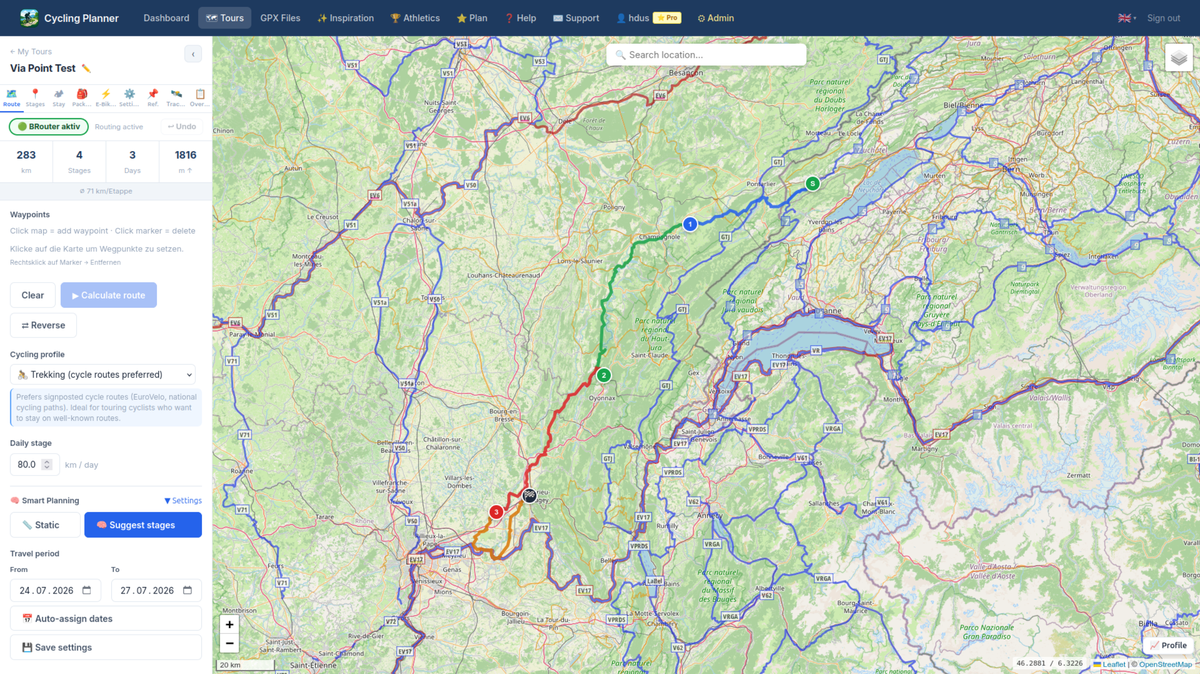
Move the mouse over a stage line on the map. After a short time a small white circle appears on the line, following the cursor. Click briefly to open the stage dialog, or drag the circle to a new position to set a via-point and immediately adjust the route. The rubber band shows exactly between which anchor points the new via-point will be inserted.
Moving via-points
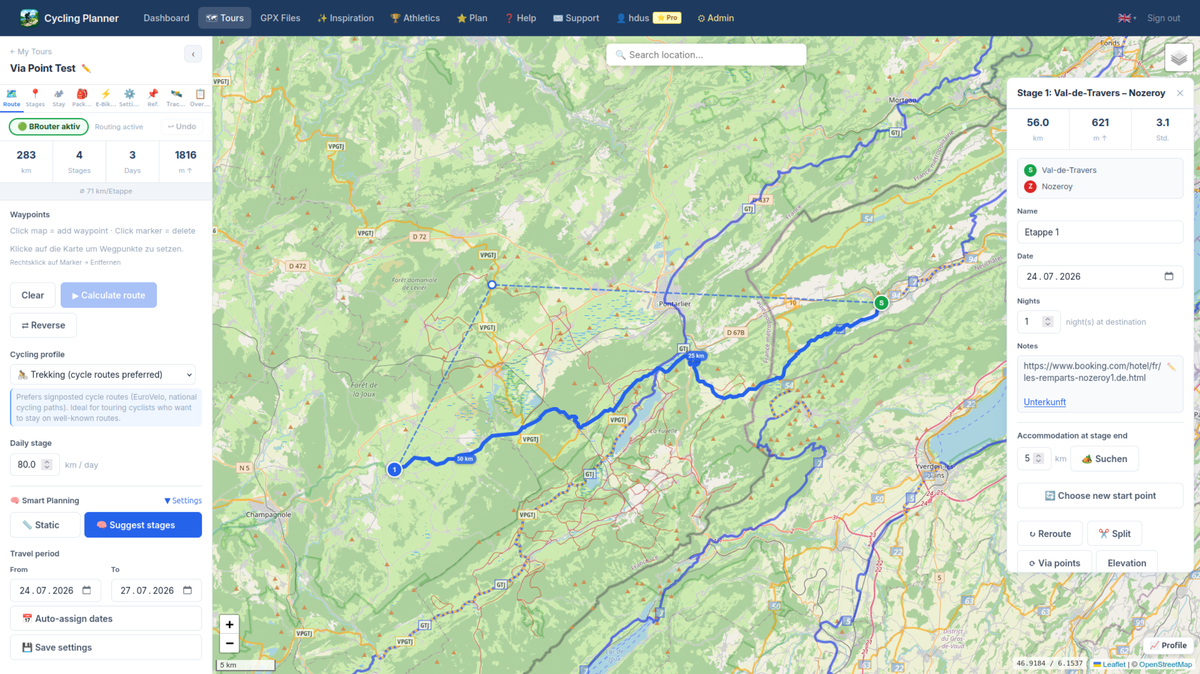
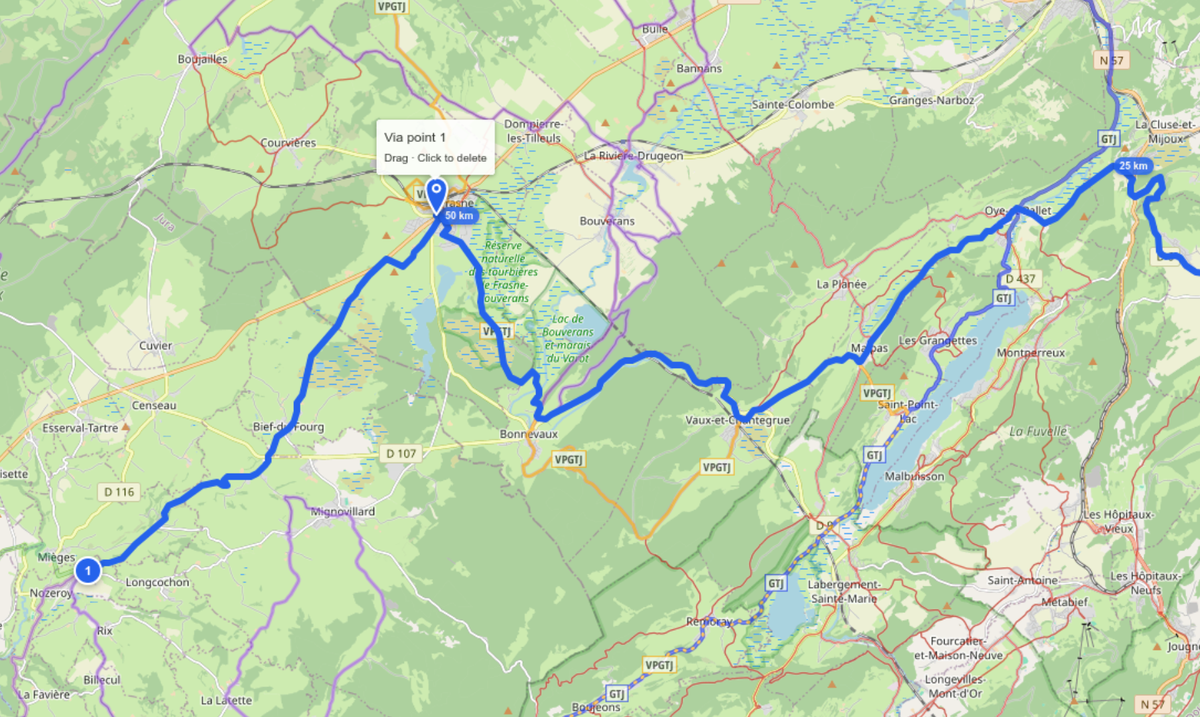
Via-points are shown as small needles on the map. When you hover over a needle it enlarges slightly – a sign that it is active. Click and drag the needle to the new position. Once you release, BRouter recalculates the stage with the new via-point. The rubber band shows the connection to the previous and next anchor point during dragging.
Removing a via-point
A simple click on a via-point needle removes it immediately and recalculates the route. Make sure to hit the needle precisely – the click area is deliberately slightly larger than the visible needle. Remove all via-points of a stage at once via «🗑 Clear via-points» in the stage dialog.
Via-points and track following
If your tour uses a GPX reference track, via-points are considered in addition to the track points. This means: you can use via-points to selectively correct individual sections without deactivating the entire track-following logic. If the last via-point of a stage is removed and no GPX track is imported, BRouter calculates the free route. If a GPX track is present, BRouter follows the track again.
Stage dialog
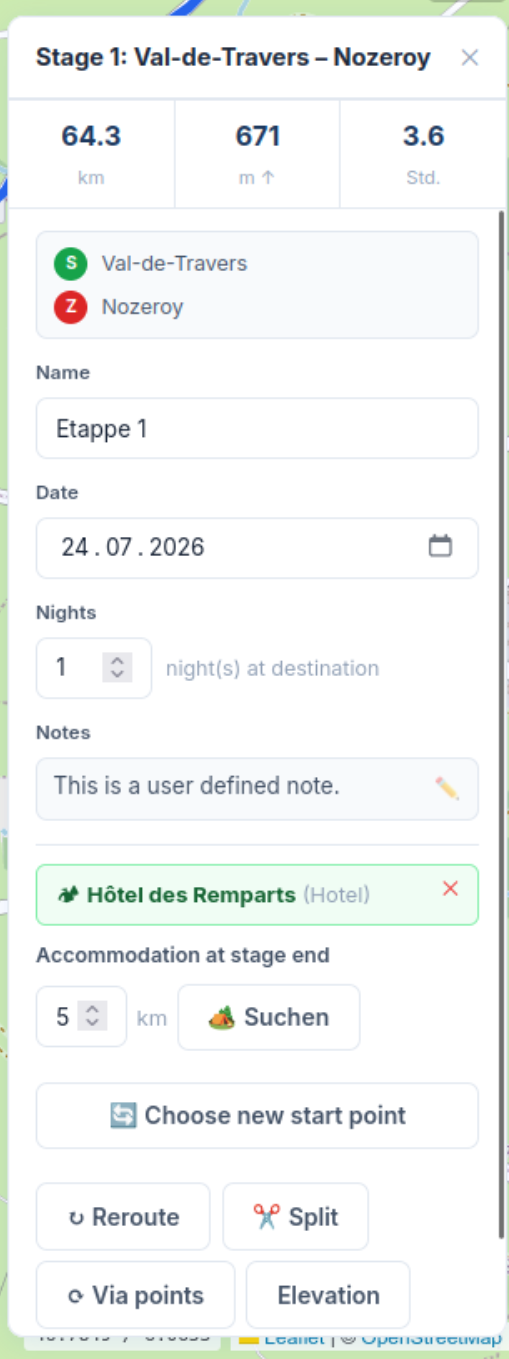
Click on a stage line or stage marker to open the stage dialog. Here you can edit the name, date, nights, notes and accommodation, as well as reroute, split or manage via-points.
Track precision
In tab «⚙ Settings» you find the «Track precision» slider (via-point spacing 1–10 km). It determines how closely BRouter stays to the GPX template: a small value (e.g. 1 km) creates many via-points along the track and keeps the route very close to the original. A large value (e.g. 10 km) gives BRouter more freedom in route guidance.
🔓 Free routing for rubber band
By default BRouter also follows the imported GPX track in the rubber band area when dragging a via-point. The toggle «🔓 Free routing for rubber band (ignore track)» in the Settings tab lets you disable this for the next drag.
When the toggle is active, BRouter ignores the GPX track for exactly this segment and calculates the most direct cycling route – ideal for:
- Deliberate detours to points of interest or mountain summits
- Bypassing closed sections (road works, closed passes)
- Sections where the GPX track is incorrect and free routing is preferred
📱 Via-points on mobile
On mobile devices, touch gestures control the map, so a different interaction model is used: the crosshair mode.
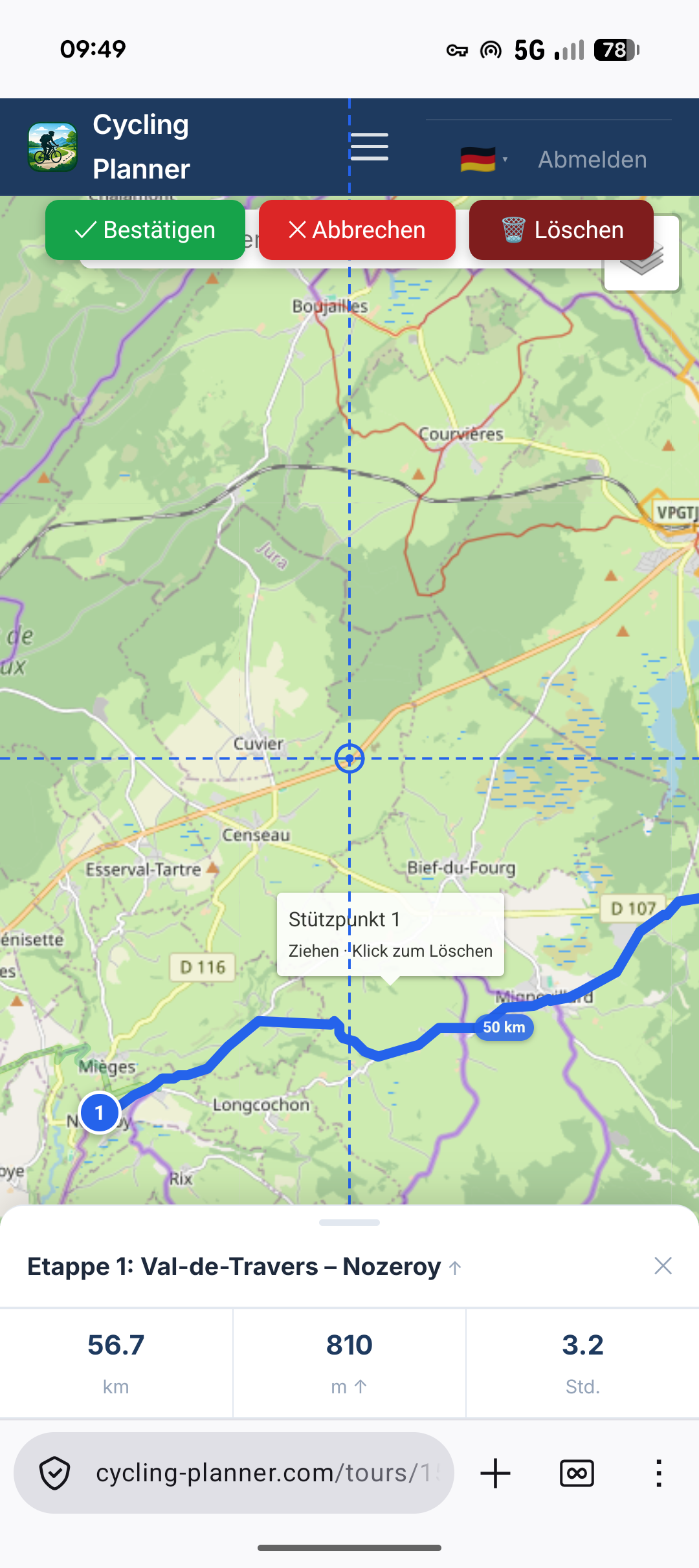
Adding a via-point (mobile)
- Tap briefly on a stage line to select the stage
- Tap the line again – the crosshair appears in the centre of the screen
- Pan the map so the crosshair sits on the desired location
- Tap «✓ Confirm» – BRouter immediately recalculates the stage
Moving a via-point (mobile)
- Tap a via-point needle (♦) on the map
- The crosshair appears at the needle's position
- Pan the map to the new position
- Tap «✓ Confirm»
Deleting a via-point (mobile)
- Tap a via-point needle – the crosshair appears
- Tap «🗑 Delete» (dark red button at the top)
- The route is recalculated without this via-point
Moving a stage endpoint (mobile)
- Long-press the stage endpoint marker (about 0.6 seconds)
- The device vibrates briefly and the crosshair appears
- Pan the map to the new endpoint
- Tap «✓ Confirm»
🔄 Circular tours Pro
Circular tours are tours where start and end are identical – for example an alpine circuit, a lake circumnavigation or a national long-distance cycle route that runs as a closed ring. Cycling Planner automatically detects circular tours based on the distance between the first and last point of the imported GPX track.
Moving the start point on the track
You have imported a circular GPX but the original start point is not where you want to start? No problem. Click the «S» marker or the 🏁 marker on the map. A popup appears with the option «📍 Choose new start point». After clicking, the cursor changes to a crosshair. Now click any point on the route – Cycling Planner rotates the entire track from that point and re-divides all stages. The result is a complete circular tour starting at your desired start point.
Start point outside the track (e.g. train station)
Sometimes your actual starting point – a train station, a car park, your home – is not directly on the circular track. In this case, after clicking «Choose new start point» select a point outside the route. BRouter then automatically calculates three segments: the approach from the new start point to the nearest track point, the circular route itself (rotated from that track point) and the return journey back to the starting point. All three segments are seamlessly joined into a coherent tour and divided into daily stages.
↩ Undo
The tour planner has a comprehensive undo system that can go back up to 20 steps in history. Undoing is done either via the ↩ Back button at the top of the sidebar or with the keyboard shortcut Ctrl+Z (Mac: Cmd+Z).
The following actions can be undone: move stage endpoint, add or remove via-point, adjust route via hover circle, split stage, delete stage, recalculate route and rotate start point of a circular tour. During undo, all affected stages on the server are reset to their previous state – including route geometry, via-points and distance values.
🎯 Workflow: Create tour from GPX
This is the most common use case: you already have a complete GPX track – for example from Komoot, Strava or an official route source – and want to create a multi-day cycling trip with clearly defined stages, dates and overnight stops.
Upload GPX: Menu «GPX Files» → «+ Upload GPX» → select file → enter description → click «Upload track»
Create tour: Menu «Tours» → «+ New Tour» → enter tour name, start date, end date and routing profile → save
In planner: tab «⚙ Tour» → «Import GPX track» → select uploaded GPX file. Track appears as light blue line on map
Tab «🔀 Routing»: check and adjust profile if needed, leave tolerance slider at 3 km. Click «Calculate route» – hourglass appears for a few seconds
BRouter calculates the route along the GPX and automatically divides it into daily stages. Map and sidebar show all stages with numbers, distances and dates
Move stage endpoints by drag & drop to overnight locations. BRouter immediately recalculates the affected stages
Per stage: open stage dialog → set name, date, notes → optionally search accommodation and set as destination
Tab «⚙ Tour» → «⬇️ Export GPX» for Garmin/Wahoo or «🔗 Share tour» for public link (Pro)
🗺 Workflow: Plan with background track
You want to plan a tour along a well-known long-distance cycle route – for example EuroVelo 6, the Lake Constance Cycle Path or the Camino – without having the exact route as your own GPX file. The reference track serves only as a visual orientation guide on the map.
Obtain reference track (e.g. EV6 GPX from eurovelo.com or opencycleroute.com) and upload it
Create tour with name, date range and suitable profile («Trekking»)
In planner: tab «📌 Reference» → «Load GPX track» → choose reference track. It appears as a thin grey background line – does not influence routing
Tab «🔀 Routing»: set waypoints along the reference track (start, rough stage endpoints, end) and calculate route. BRouter automatically finds the best cycling route
Move stage endpoints precisely to places along the reference track by drag & drop
Set via-points where BRouter deviates too far from the reference track
✏️ Workflow: Plan manually (without GPX)
You are planning a completely custom route – perhaps a new alpine crossing on little-travelled paths or a tour through unknown terrain. No GPX available, everything is created from scratch in the planner.
Create tour with name, desired date range and suitable profile
Tab «🔀 Routing»: use the location search top-left on the map to quickly navigate to the starting location. Click on the map to set the first waypoint
Set further waypoints: rough intermediate stops and the destination. The order can be adjusted in the list by drag & drop
«Calculate route» – BRouter finds the optimal cycling route through all points and divides it into daily stages
Move stage endpoints by drag & drop to specific overnight locations (campsite, hotel, guesthouse)
Set via-points on stage lines to include passes, points of interest or special waypoints
Set date, name and notes per stage → export or share the finished tour
🔄 Workflow: Adjust circular tour Pro
You have a circular GPX and want to move the start point to your actual starting location.
Upload GPX, create tour, calculate route. The track starts at the original GPX start point
Click the «S» marker or 🏁 marker → popup appears
Click «📍 Choose new start point» – cursor becomes crosshair
Click the desired point on the route (e.g. your home town or the station on the track)
Hourglass appears. Track rotates, all stages are re-divided from the new point ✅
Like Scenario A, steps 1–3
Click your starting point outside the route (e.g. train station)
BRouter automatically calculates: approach (station → track entry point) + circular route + return journey (track exit → station)
All stages including approach and return are re-divided ✅
🏕 Workflow: Set accommodation as stage destination Pro
You don't want to set stage endpoints arbitrarily, but want to stay overnight at a specific campsite, hotel or mountain hut – and the route should end exactly there.
Open stage dialog (click on stage marker or stage line)
Set search radius (default 5 km) → click «🏕️ Search». OSM is queried, hourglass appears briefly
Accommodation markers appear colour-coded on the map. Hover over a marker – after 600ms the details popup opens automatically
Click «📍 Set as stage destination» in popup → confirmation dialog appears
The app saves the accommodation, moves the stage endpoint to the accommodation position and recalculates this and all subsequent stages. Hourglass runs for a few seconds
Stage dialog shows the accommodation highlighted in green. Stage list and hover tooltip on the marker show the accommodation name ✅
⛰️ Elevation profile
The elevation profile visualises the gradients and descents of all your tour stages in a combined chart. You find it in tab «📈 Profile» in the sidebar and as a compact, expandable panel below the map.
The special feature of Cycling Planner's elevation profile is the bidirectional synchronisation with the map: when you hover over a point in the chart, a blue dot appears on the map at the corresponding position on the route – you see exactly which geographical point corresponds to the current elevation. Conversely, the chart reacts when you hover over a stage line on the map: the chart cursor automatically jumps to the corresponding section.
The hover tooltip in the chart shows you the total distance from tour start, the current elevation above sea level, the distance within the current stage and the stage's elevation metres (ascent and descent separately). The stages are clearly separated by vertical dividing lines in the chart, and each stage has its own colour.
🎒 Packing list
The packing list helps you systematically plan your equipment for the cycling trip. You access it in the tour planner via the «🎒 Packing list» tab – one click opens the list directly in the right sidebar of the map.
On first opening, the packing list is automatically populated from a global template containing typical equipment for cycling trips: from tools and spare parts, clothing and sleep system, to hygiene articles and electronics. The items are grouped into categories. Each category has a checkbox row: clicking the category row selects or deselects all items in that category simultaneously.
You check off individual items with the checkbox. The progress bar at the top shows how many items you have already packed. Add your own items via the + symbol. Remove unwanted standard items by deselecting them. Use ↺ to reset the list to the default.
For printing click the 🖨 symbol. A clean print window opens with your complete packing list divided by categories. Completed items appear struck through and grey, pending items clear and black. The browser's print dialog opens automatically.
🌤 Weather forecast Pro
With a Pro subscription you can call up a weather forecast for each stage of your tour in tab «🌤 Weather». Click «Load weather» – Cycling Planner queries the free service Open-Meteo for the geographic position of each stage. Per stage the following information is shown: minimum and maximum temperature, expected precipitation, wind speed and a matching weather symbol (sun, clouds, rain, snow).
The forecast is limited to 16 days in advance – for stages further in the future «No forecast available» appears. Stages without a set date are skipped in the weather overview. It is advisable to update the weather data again shortly before departure, as long-term forecasts over 5–7 days only provide indicative values.
🏕 Accommodation search Pro
The accommodation search is a Pro feature and accesses the OpenStreetMap database for free – one of the most comprehensive free geodatabases in the world. Depending on the region and data coverage you will find campsites, hotels, guesthouses, hostels, alpine huts and other accommodation types entered by the OSM community.
There are two search modes: in tab «🏕 Accommodation» in the sidebar you search along the entire tour and see all available accommodations at once on the map. In the stage dialog you search specifically within the radius of the current stage endpoint. The search radius is adjustable in both cases.
Accommodation types and display
Each accommodation type has its own icon and colour on the map. Campsites (🏕), hotels (🏨), hostels and guesthouses (🛏), huts and shelters (⛺) and uncategorised accommodations are shown differently. The details popup opens automatically after 600ms hover time over the marker and shows: name, type, distance to route, opening hours, phone number, website, capacity and features such as shower and power connection.
Setting accommodation as stage destination
In the details popup you find the button «📍 Set as stage destination». After a confirmation prompt, Cycling Planner moves the stage endpoint to the exact position of the accommodation and recalculates the route. This function is the most direct way to align your tour with specific overnight options.
🚉 Train connections Pro
The Train connections tab helps you plan how to get home from your stage destination. It shows nearby stations on the map and provides train schedules to your home station.
Set home station
Go to Profile → Home station and enter your home station. It will be used as the default destination for all connection queries.
Search for stations
- Open the «🚉 Train» tab in the planner
- Zoom to the desired map area (stage destination)
- Click «Search stations»
- Stations appear as 🚉 icons on the map
Query connections
- Click on a 🚉 icon on the map
- The popup shows the next connections to your home station with departure, arrival, duration and changes
- Use «◀ Earlier» and «Later ▶» to navigate through time
- Click on a connection to see leg details with train type
🛰️ Live Tracking Pro
Live Tracking allows friends, family or companions to follow your current position in real time during a ride on a public map – without needing a Cycling Planner account. Simply share a link and your viewers instantly see where you are, how fast you're going and how far you've already ridden.
Starting tracking
Open the «🛰️ Tracking» tab in the tour planner – it takes you directly to the tracking control page. Optionally enter a label (e.g. «Day 3 – Over the Gotthard Pass») so viewers immediately know what's happening. Then click «Start tracking». The app creates a unique, unguessable link – share it via WhatsApp, SMS or email.
Viewer page
Anyone who opens the link sees a full-screen OpenStreetMap with a blue cyclist symbol at your current position and the route covered as a blue line. An info panel shows speed, elevation, total distance and the last update time. The planned stage routes appear as dashed guide lines so viewers can see the context. The panel appears to the right of the map on large screens, below it on mobile.
OsmAnd – Android
OsmAnd for Android supports Online Tracking directly in the Trip Recording plugin. Here's how to set it up:
Open OsmAnd → Menu ☰ → Plugins → activate the «Trip recording» plugin
Menu ☰ → Settings → Profile → Plugin settings → Trip recording
Switch on «Online tracking»
In the «Web address» field paste the OsmAnd URL from the control page:
https://your-domain.com/api/tracking/TOKEN/position?lat={0}&lon={1}×tamp={2}&hdop={3}&altitude={4}&speed={5}
On the control page copy it directly using the «Copy OsmAnd URL» button.
«Tracking interval»: 30 seconds recommended
Main screen → tap the Trip recording widget → start recording. OsmAnd will now send in the background even with the screen off.
speed in m/s – Cycling Planner automatically converts it to km/h.The iOS version of OsmAnd does not support Online Tracking (as of 2025). iPhone users should use Traccar Client instead – a free app that uses the same protocol and sends reliably in the background.
Install Traccar Client from the App Store (free, by Traccar)
Open the app → in the «Server URL» field enter (TOKEN from the control page):
https://your-domain.com/api/tracking/TOKEN/position?lat={0}&lon={1}×tamp={2}&hdop={3}&altitude={4}&speed={5}
Set the «Frequency»: 30 seconds recommended
iOS Settings → Privacy → Location Services → Traccar → select «Always»
Enable the «Tracking» toggle in the Traccar app.
GPSLogger (Android) – recommended for background tracking
GPSLogger is a lean, free Android app that can send GPS positions in the background even with the screen off. Setup takes about 2 minutes.
Install GPSLogger from F-Droid (com.mendhak.gpslogger) and open it. Confirm all permission requests when first starting – especially «Allow location all the time». Note: There is an unrelated app with the same name on the Play Store – the wrong app will not work.
Hamburger menu ☰ top left → «Logging Details» → scroll down → switch on «Log to custom URL». GPSLogger automatically opens the Custom URL settings.
In the «URL» field enter the following (replace TOKEN with your token shown on the tracking control page):
https://your-domain.com/api/tracking/TOKEN/position
Tap «HTTP Method» → select POST
In the «HTTP Body» field enter exactly this:
{"lat":%LAT,"lon":%LON,"ele":%ALT,"speed":%SPD_KPH}
The placeholders %LAT, %LON, %ALT, %SPD_KPH are automatically replaced by GPSLogger with current values. %SPD_KPH delivers speed directly in km/h.
In the «HTTP Headers» field enter:
Content-Type: application/json
Back to main menu: ☰ → «Performance» → «Time before logging» set to 30 seconds (balance between update rate and battery)
Back to main screen → press the big «Start» button. GPSLogger now sends automatically in the background – even with the screen off.
Test: Tap «One time run» in the main menu to immediately send a test position. Your location should appear on the viewer page.
Stop tracking
Return to the tracking control page and click «Stop tracking». All viewers are immediately notified – the status badge on their page switches from «Live» to «Ended». Also remember to stop recording in OsmAnd or GPSLogger.
📂 Pseudo Live Tracking – GPX upload for poor connectivity
For adventures in regions without reliable mobile coverage – for example on long-distance cycling routes in Africa, Asia or remote mountain areas – there is the GPX upload mode. The principle: GPSLogger records the route locally, even without an internet connection. As soon as you have Wi-Fi or mobile data again – perhaps only after several days – you upload the GPX files. Your followers then immediately see the entire route covered, including timestamps.
Start a tracking session as usual – you get a viewer link to share with friends and family in advance. They can open the link at any time and will see the most recently uploaded track.
Set up GPSLogger for local GPX recording: Menu ☰ → «Logging Details» → enable «Log to GPX file». GPSLogger now saves a GPX file locally every day – even without an internet connection.
When internet is available: open the tracking control page → section «📂 GPX Upload (Pseudo live tracking)» → «Select GPX file(s)». You can select multiple files at once – e.g. the GPX files from the last three days. Cycling Planner inserts all points chronologically and automatically skips duplicates.
Progress is shown: «⏳ Uploading 2/3: 2024-01-15.gpx…» – after upload you see how many new points were added and how many duplicates were skipped. Open viewer windows update immediately via push notification.
GPSLogger – automatic upload as soon as internet is available
Even more convenient: GPSLogger can upload files automatically as soon as an internet connection is available – you don't have to do anything manually.
Menu ☰ → «Logging Details» → «Log to custom URL» → at the very bottom enable «Upload to URL»
In the «URL» field enter the upload URL from the tracking control page (the «Copy URL» button in the GPX Upload section):
https://your-domain.com/api/tracking/TOKEN/upload-gpx
Method: POST · File field: file (default value, no change needed)
GPSLogger now automatically sends every completed GPX file as soon as internet is available. Already-uploaded files are marked internally as sent – they are not transmitted twice.
Viewing & reactivating past sessions
Ended tracking sessions are not deleted. On the control page, a «🕐 Past sessions» section appears below the active panel, listing the last 10 completed sessions with label, number of recorded points, and last update time.
«👁 View» opens the viewer for the ended session – the map automatically fits the full recorded track. «🔄 Reactivate» (only visible when no session is active) sets the session back to active so you can continue recording GPS data and share the link again.
📓 Travel diary
The travel diary lets you record your experiences for each tour and stage — with text, mood, photos and visibility settings.
Opening the diary
Expand a tour in the list and click 📓 Diary.
Creating a new entry
Each stage has a + Entry button. Click it to open the input modal with date, mood (1–5 stars), rich-text notes and up to 3 photos (auto-compressed to 2 MB).
Sharing the public diary
If the tour is public, a 🔗 Share link button appears at the top of the diary page. Only entries marked as «public» are visible to visitors. The link has the form /tours/shared/{token}/diary.
✂️ Re-route section
This feature lets you re-route part of an existing tour without moving each stage individually. Perfect for shortening a detour or redirecting a section northward.
Steps
- Open the tour planner
- Click ✂️ Re-route in the stage list — or right-click a stage marker on the map
- Choose From stage and To stage (their endpoints are preserved)
- Click on the map to place waypoints (as many as you like). Right-click a waypoint to remove it
- Click 🔀 Calculate route
Result
BRouter calculates a new route through your waypoints. Old stages in the selected range are deleted and replaced by new ones. The number of new stages is determined by the tour's maximum daily distance setting and the start date of the first replaced stage.
Undo
The operation is fully reversible using the Undo button (↩️).
⧉ Duplicate tour
The ⧉ button in the tour list (visible after expanding a tour) duplicates an existing tour.
What is copied
- All tour settings (name + "(Kopie)", profile, daily distance, dates etc.)
- All stages including route, distance, elevation profile and notes
What is not copied
- Travel diary entries and photos
- Packing list
- Accommodations
- Public status (copy is always private)
After duplicating you are redirected directly to the planner of the new tour.
📊 GPX analysis
GPX analysis calculates a range of metrics from the raw data of your GPS track. Precise algorithms are used that filter out GPS-typical noise and deliver reliable values:
| Value | Calculation method | Free | Pro |
|---|---|---|---|
| Distance | Haversine formula over all track points – geodetically correct even over large distances | ✅ | ✅ |
| Elevation gain | Sum of all positive (ascent) and negative (descent) elevation differences using the Garmin/Strava method without noise threshold | ✅ | ✅ |
| Max gradient | Sliding 30m window eliminates GPS noise. Values over ±35% are capped as they are physically unrealistic | ✅ | ✅ |
| Difficulty | Score = (Elev gain/km × 3) + (min(km × 0.15, 20)) + (MaxGrad × 0.3) → five levels | ✅ | ✅ (SRTM) |
| Steep sections | Number of segments with gradient over 10% – shows «hardness» of the tour | ✅ | ✅ |
| VAM | Vertical ascent per hour in m/h – performance indicator from GPS timestamps | ✅ | ✅ |
| SRTM correction | Satellite elevation data via Open-Elevation API – corrects measurement inaccuracies of the GPS barometer | ❌ | ✅ |
| Gradient heatmap | Colour coding on map per 10m segment: green → yellow → orange → red | ✅ | ✅ |
🧠 Smart Stage Planning Pro
Smart stage planning calculates an optimised distribution of your route – not by equal distance, but by equal effort. A 60-km stage with 1500 m of climbing is just as demanding as an 80-km stage on flat terrain. Cycling Planner takes into account distance, elevation profile, terrain type and your personal fitness level.
Where is the feature?
In the planner: tab «🗺 Route» → section «🧠 Smart Planning», directly below the «km/day» field. Next to it you also find the «📏 Static» button for classic equal-distance planning (free, always available).
Settings
Expand the settings via «▼ Settings»:
| Parameter | Options | Effect |
|---|---|---|
| Fitness level | 🐢 Beginner · 🚴 Recreational · 🏅 Sport · ⚡ Advanced | Sets the base daily distance (50 / 75 / 110 / 155 km/day) |
| Pace / Expectation | 😌 Relaxed · 🚴 Normal · 🔥 Sporty | Scales the base km by factor ×0.8 / ×1.0 / ×1.2 |
| Terrain | 🔍 Auto · ⬜ Flat · 〰️ Rolling · ⛰ Hilly · 🏔 Mountain | Reduces effective km/day by gradient (×1.0 to ×0.55). «Auto» detects terrain automatically from the elevation profile |
Formula
Effective km/day = base km × pace factor × terrain factor. The stage split additionally uses a simplified Naismith rule: 75 metres of ascent equals 1 km of extra effort. This makes mountain sections shorter and flat sections longer.
Preview and apply
Click «🧠 Suggest stages». Cycling Planner calculates the split and shows a modal with all proposed stages: number, distance, elevation gain and a bar chart for comparison. The summary at the bottom shows the number of stages, total km and target km/day. Click «✓ Apply stages» to accept the plan, or «Cancel» to discard.
Save as default profile
Tick «Save as my default profile» before generating the suggestion. The settings are saved to your account and pre-filled automatically next time you open the planner.
Back to static planning
Click «📏 Static» – this button is always visible and free. It splits the route evenly by the «km/day» value without elevation or terrain correction.
📝 Stage notes
Each stage can have formatted notes. Notes are ideal for route tips, elevation warnings, shopping options, points of interest or personal remarks.
Opening and editing notes
In the stage dialog the notes field is shown as a clickable preview area. Clicking it opens the notes editor – a modal window with a full formatting toolbar. The preview shows the first lines of the saved text directly in the stage dialog.
Formatting options
| Function | Description | Shortcut |
|---|---|---|
| B Bold | Bold text highlight | Ctrl+B |
| I Italic | Italic text | Ctrl+I |
| U Underline | Underlined text | Ctrl+U |
| ≡ Bullet list | Unordered bullet list | – |
| 1. Numbered list | Ordered numbered list | – |
| H Heading | Format a section as H3 heading | – |
| 🔗 Link | Insert a URL – enter it in the prompt dialog | – |
| ✕f Clear format | Remove all formatting from selected text | – |
Links in notes
Links in the preview are directly clickable and open in a new tab. In the editor, open a link with Ctrl+click (desktop) or hold 1 second (mobile).
Saving
Click «Apply» in the editor modal. Notes are saved immediately – the stage dialog remains open. Notes also appear in the stage overview (print view) and in the calendar export (.ics) as description text.
🎨 Route line style
The appearance of the route line on the map can be customised individually – particularly helpful in urban areas where roads and paths are often shown in the same colour as the route, making it hard to follow.
Adjusting the style
In the planner: tab «⚙ Settings» → section «Route line». Available parameters:
| Parameter | Description |
|---|---|
| Colour | Colour picker + presets (Blue, Red, Green, Orange, Purple, Black, White). Custom colours via colour picker. |
| Width | Line width from 1 to 12 pixels. Default: 5 px. Thicker lines are more visible on busy map backgrounds. |
| Line style | Solid · Dashed · Dotted · Dash-dot. Dashed lines stand out well from the continuous road network. |
A live preview shows the chosen combination immediately. Click «✓ Apply & save style» to save permanently – the style is automatically applied next time the tour loads.
Single colour vs. rainbow colours
By default each stage gets its own colour from the rainbow palette so they are easily distinguishable on the map. Once you choose and save a colour in the style panel, all stages get the same colour. To restore rainbow colours, clear the saved style (reset colour to blue and line style to solid).
GPX detail view
In the GPX detail view (single track) the style toolbar is located directly above the map. Changes are saved in browser storage (localStorage) – per device and per GPX file, without a server round-trip.
⬇️ Export and sharing
Export GPX
Tab «⚙ Tour» → «⬇️ Export GPX»: GPX file with all stages as separate tracks. Compatible with Garmin, Wahoo Elemnt, Komoot and RideWithGPS.
Making a tour public
In «My Tours» expand a tour and use the 🌍 / 🔒 toggle directly — no settings page needed. When the tour is public a 🔗 Link button appears to open the shared view.
The public tour page shows: interactive map, elevation profile (linked to the map), stage list and description. Visitors don't need an account.
GPX download on the public page
On the public tour page visitors can download the GPX of the full tour (button «⬇️ GPX» in the action bar) or individual stages (link «⬇️ GPX» per stage in the stage list). No login needed.
Embed tour (iframe)
Public tour page → button «Embed». Choose a size → copy the <iframe> code → paste into your blog post.
Calendar export (.ics)
Tab «⚙ Tour» → «📅 Calendar (.ics)». Exports all stages with a set date as a calendar file. Compatible with Apple Calendar, Google Calendar and Outlook.
Print view and PDF
Tab «⚙ Tour» → «🖨️ Print» opens a print-optimised view. Choose «Save as PDF» in the browser print dialog.
✨ Tour Inspiration
The inspiration page (✨ Inspiration in the navbar) shows all publicly shared tours from the community — accessible without login.
Page structure
- Card grid: Each tour is displayed with a map preview, name, description (2 lines), distance chip, elevation chip and stage count
- Filter chips: All / Short (<200 km) / Medium (200–600 km) / Long (>600 km)
- Tour creator name shown on each card
Public tour page
- Interactive map with all stage routes in different colours
- Elevation profile linked to the map: zooming the map updates the profile; hovering the profile shows the map position and vice versa
- Stage list — click on a stage to zoom the map to that stage and show an info panel (name, route, distance, elevation, date)
- GPX download for the full tour and individual stages
- iframe embed, WhatsApp share, diary link
- Sign-up CTA for non-logged-in visitors
Publishing your own tour
In «My Tours» → expand a tour → set the 🌍 / 🔒 toggle to public. The tour will appear automatically on the inspiration page.
⚡ E-Bike Energy Planner Pro
The E-Bike Energy Planner calculates expected battery consumption for each stage – based on distance, elevation, rider weight and assist mode. Know before you go whether your battery will last the stage.
Input parameters
- Battery capacity (Wh): Your e-bike battery capacity (typically 400–750 Wh)
- Current charge (%): How full is the battery at the start?
- Rider weight + luggage (kg): Total weight of rider, equipment and luggage
- Assist mode: Eco (~5 Wh/km), Tour (~7 Wh/km), Sport (~9 Wh/km), Turbo (~13 Wh/km)
Result
Each stage shows: Wh consumed, remaining charge at destination (%), and a traffic-light rating (green / yellow / red). The system assumes you can charge at each stage destination – so each stage starts with a full battery.
Charging stations
Click «Load» to show e-bike compatible charging stations from OpenStreetMap on the map – filtered to stations with Schuko or Type-E sockets (standard e-bike charging cables). Tesla Superchargers and pure car chargers are hidden.
Stage range optimisation
Click «Check stages for range» to analyse every stage against a target of 10% remaining charge at the destination. Stages that exceed the safe range are highlighted in red, with a suggested split point: the optimal kilometre to stop and charge, the remaining charge at that point, and the residual distance as a separate stage.
🚴 Ride today? – Daily Score Pro
On the tour overview page, Cycling Planner calculates a score from 0–100 for each stage with a date set, combining weather data with your personal fitness profile.
| Score | Grade | Meaning |
|---|---|---|
| 85–100 | 🟢 A | Top! Perfect conditions |
| 65–84 | 🟡 B | Good – minor constraints |
| 45–64 | 🟠 C | Acceptable – with caveats |
| 25–44 | 🔴 D | Not recommended |
| 0–24 | ⛔ F | Stay home! |
The ⚙️ fitness profile (fitness level, preferred time of day, last ride) is saved in the browser and restored on your next visit. Weather is fetched per stage endpoint for the stage date (Open-Meteo, 16-day window).
Click any score card to open a detail modal showing all 7 scoring factors with OK/Malus badges, full weather data (temp min/max, precipitation, wind speed and direction), and a concrete recommendation for the day. The fitness profile used for the calculation is shown at the bottom. Close with ✕, click outside, or ESC.
🏆 Athletics Dashboard Pro
The Athletics Dashboard gives you a complete overview of your training history based on your uploaded GPX files. Accessible via 🏆 Athletics in the top navigation.
Summary
At the top you see at a glance: total activities, total kilometres, kilometres in the current year, and total hours in the saddle.
Best performances
Three cards show your longest ride (km), your highest elevation gain activity, and your fastest average speed – each with the name of the corresponding GPX file.
Charts
- 📅 km per month: bar chart of the last 12 months
- 📈 Cumulative km: build-up curve for the current year
- ❤️ Heart rate zones: time distribution across Z1–Z5 (if HR data is available in GPX)
- 📊 Activities per month: number of rides per month
Activity list
All activities are grouped by year and month, showing km, elevation, average speed and average heart rate. The 👁️ button opens a detail view with a map preview of the route.
Upload GPX
Use the upload field directly on the dashboard to add GPX files – they appear immediately in the list and are included in all statistics.
<extensions> data with HR values (e.g. from Garmin, Wahoo or compatible GPS devices).📋 Tour Overview
The tour overview is a structured one-page summary of your entire tour. Access it via the «📋 Overview» button in the tour list or the matching tab at the far right of the planner sidebar.
- Statistics: Total distance, stages, elevation gain, tour duration
- 🚴 Ride today? scores: Per-stage weather recommendation based on your fitness profile (Beginner / Medium / Fit / Pro) and time of day. Pro feature, only for stages with dates within the next 16 days.
- Stage table: Date, start/end, km, ascent/descent, riding time, weather, notes
- Elevation profile: Combined chart across all stages
Wind scale: ≤5 km/h calm · 6–12 light · 13–25 gentle breeze (−3 pts) · 26–40 moderate (−10 pts) · 41–60 strong (−20 pts) · >60 storm (−35 pts)
Use the «Print» button to open the browser print dialog — nav and interactive elements are hidden automatically.
👤 Account & profile
Under /profile (top-right menu → username → Profile) you find all personal settings for your account.
Change password
Enter your current password and the new password twice. The new password must be at least 8 characters long.
📦 Export your data
In the «📦 Export my data» section on the profile page, you can download all your tours and GPX files as a ZIP archive. The archive contains:
tours/– each tour as its own GPX file with all stagesgpx_uploads/– all uploaded raw GPX filesinventory.json– complete inventory with metadataREADME.txt– explanation of the contents
Export is always available free of charge – even for Free users. Your data belongs to you.
Delete account
At the bottom of the profile page, in the «⚠️ Delete account» section, you can permanently delete your account and all associated data. The following will be deleted:
- All tours and stages
- All uploaded GPX files
- All live tracking sessions
- Your subscription (Pro plan)
- Your user account
For security, your password must be entered. After clicking the red confirmation button, a second confirmation dialog appears. This action is irreversible. Administrators cannot delete their own account — this must be done via another administrator account.
⭐ Plans & pricing
| Feature | Free | Pro EUR 5.90 / month |
|---|---|---|
| Tours | Max. 3 | Unlimited |
| GPX Upload & Analysis | ✅ | ✅ |
| BRouter Routing (all profiles) | ✅ | ✅ |
| Via-points | ✅ | ✅ |
| Packing list | ✅ | ✅ |
| GPX Export | ✅ | ✅ |
| Calendar export (.ics) | ✅ | ✅ |
| Print view / PDF | ✅ | ✅ |
| Reference tracks | ✅ | ✅ |
| Undo (20 steps) | ✅ | ✅ |
| Circular tour: move start point | ❌ | ✅ |
| Weather forecast (16 days, Open-Meteo) | ❌ | ✅ |
| Share tour (public link) | ❌ | ✅ |
| Accommodation search (OpenStreetMap) | ❌ | ✅ |
| Set accommodation as stage destination | ❌ | ✅ |
| SRTM elevation correction | ❌ | ✅ |
| 🛰️ Live Tracking | ❌ | ✅ |
| 📦 Data export (GPX/ZIP) | ❌ | ✅ |
| 🏆 Athletics Dashboard | ❌ | ✅ |
| ⚡ E-Bike Energy Planner | ❌ | ✅ |
⌨️ Keyboard shortcuts
| Key | Function |
|---|---|
| Ctrl+Z / Cmd+Z | Undo last step |
| Escape | Close stage dialog / cancel insert mode / cancel rotation mode |
| + / – | Zoom map in / out |
| Ctrl+Shift+R | Hard-reload – clear browser cache completely |
❓ FAQ
Map doesn't appear or is empty
First check if the BRouter toggle in tab «🔀 Routing» is showing green. If it's red or disabled, the server cannot reach BRouter. Ensure the server has internet access to brouter.de. If that doesn't help, fully reload the page with Ctrl+Shift+R – cached JavaScript files are sometimes responsible.
BRouter deviates strongly from the GPX track
Reduce the tolerance slider in tab «🔀 Routing» to 1–2 km. If BRouter still deviates, OpenStreetMap is missing cycling path data at that location or there are physical obstacles (ferries, closed paths). In this case manually set via-points on the stage line at the deviation points.
BRouter calculates wrong route on circular tours
This typically occurs with GPX tracks that have large gaps (ferries, tunnels, cable cars). The algorithm tries to bridge these gaps with cycling routes, which can lead to unwanted detours. Set via-points directly on the stage line at such points to correct the routing.
Accommodation marker doesn't open popup
The details popup only appears after exactly 600ms hover time on the marker. Move the mouse slowly and calmly over the marker and then hold it still. If the popup still doesn't open, the marker may be overlapped by another element – try moving the map view.
Date change is very slow
All stages are updated in a single server request (bulk update). With 10 or more stages this process can take 2–5 seconds. This is normal and not an error – wait until the hourglass disappears.
My GPX shows unrealistic gradient values (e.g. 50%)
This is caused by GPS noise in the elevation data. Click «🔄 Re-analyse» (Pro) to repeat the analysis with the 30m window method and SRTM data. Without Pro the noise filtering is still applied, but without the more accurate SRTM elevation corrections.
Session keeps expiring
The timeout is set to 24 hours of inactivity. Every interaction with Cycling Planner extends it automatically. If you are still logged out, log in again – all tours, stages and settings are persistently stored in the database and are never lost.
Free limit reached or after downgrade
You have reached the Free limit of 3 tours – either because you switched from Pro/Trial back to Free, or because you directly created 3 tours.
What happens after a downgrade: All existing tours remain accessible and can still be edited. Only creating new tours is blocked while you are over the limit. No tours are automatically deleted.
Options:
- Delete older tours under 📋 Tours until you are below 3 – then you can create new ones again.
- Upgrade back to Pro under «⭐ Plan» for unlimited tours.
GPX export doesn't work with my Garmin
Ensure the tour has at least one stage with a calculated BRouter route. Stages without route geometry export only start and end point as individual waypoints without a route between them. After export, open the GPX file in Garmin Basecamp or Komoot to check it before transfer.
🗺️ Route Library Pro
The Route Library contains curated cycling routes – EuroVelo long-distance routes, national cycling paths, Voies Vertes and more – which you can use directly as a base for your tours.
Browsing routes
Open 📂 GPX Files in the navigation. At the bottom of the page you'll find the Route Library. Routes are grouped by category in collapsible sections (EuroVelo, Long-distance, National …).
You can filter the library in three ways:
- Free text search – search by name or region
- Country – filter by ISO country code
- 📍 Map search – spatial filter: current map view, radius around a place, or your current location
Preview
Click on a route tile to open the preview modal. It shows:
- Interactive map with the route (orange line), green start marker and red end marker
- Start → Destination (auto-detected via reverse geocoding)
- Statistics: distance, ascent, descent, maximum elevation
- Elevation profile – hover over it to see the position on the map
Using a route
Two actions are available in the modal:
- ⬇️ Save as GPX – saves the route to «My Tracks» for later use
- 🚴 Create tour – creates a new tour with automatically generated stages. You can set the tour name, km/day, start date and BRouter profile.
🔒 Privacy & your data
Cycling Planner takes data protection seriously. Here are the key points:
- 🚫 No data sharing. Your tours, GPX files and personal data are never sold, rented or used for advertising.
- 📊 No tracking. No Google Analytics, no advertising cookies, no retargeting, no profiling.
- 💰 Our business model. We are funded exclusively by Pro subscriptions – not by data.
- 📦 Export at any time. You can download all your data as a ZIP (Profile → Export my data).
- 🗑 Complete deletion. Deleting your account permanently removes all data.
- 🇨🇭 Swiss data protection. We comply with the Swiss DSG and EU GDPR.
The full privacy policy is available at cycling-planner.com/legal/datenschutz.
7-day trial
New accounts automatically receive 7 days of access to all Pro features. No subscription, no credit card. After the trial period ends, you automatically switch to the Free plan – you are not automatically enrolled in a paid subscription.